Check with the Assistant
If a source contradicts a detail in CONTXT, the Assistant can compare the two and propose a correction. The correction is saved only once you have reviewed and applied it.
An example: for the Vase mit Streifendekor, the record gives the date 1908. The inventory card, however, says "circa 1910". Record an object shows how to create the vase.
You need:
- the link to the object in CONTXT
- the source and the exact place in it, for example "inventory card, back, line 3"
Ask the Assistant
Open Assistant and describe what should be checked. Add that the Assistant should only propose the correction and not change the record yet.
Check the date of the "Vase mit Streifendekor". The record says 1908. The inventory card says "circa 1910" on the back, line 3. Keep the "circa". Create the correction as a change request and do not change the record yet.
Paste the link to the vase and choose Send.
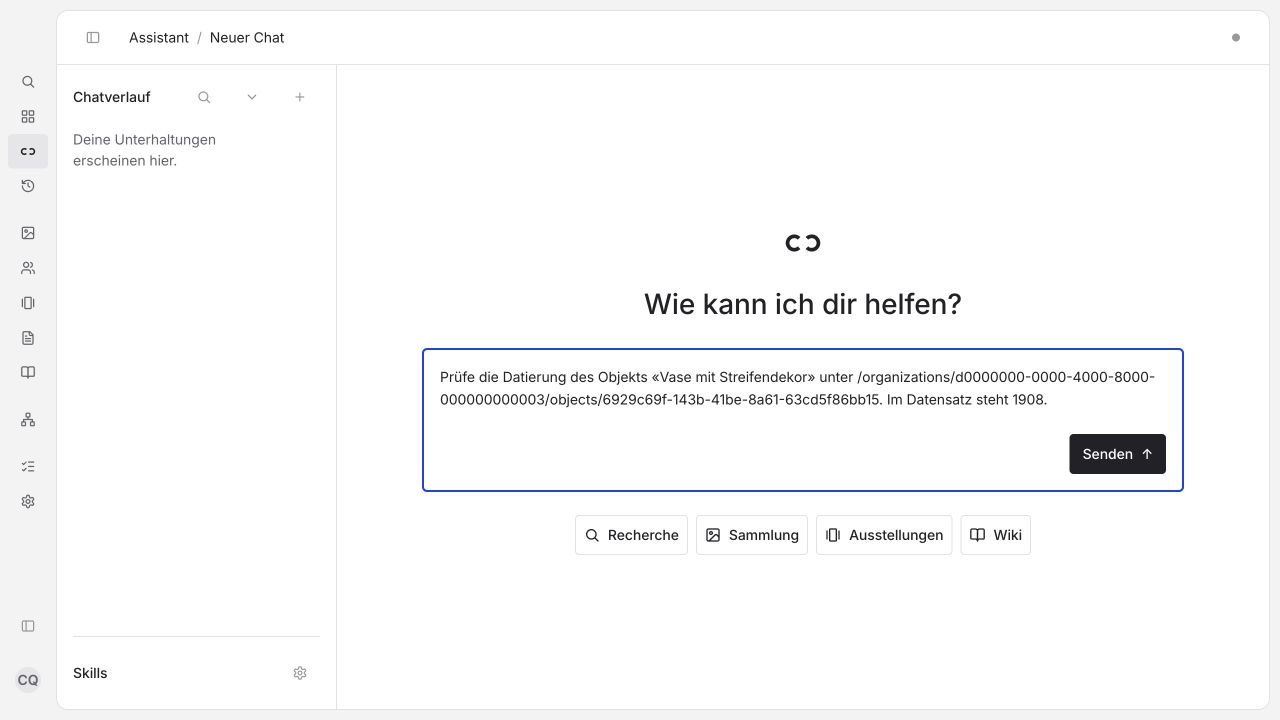
Instead of a text passage, you can also provide a link or a file. A file you attach in the chat is not yet saved on the object. More on this under The Assistant.
Check the response
The Assistant should say that the two details contradict each other and name the place in the source. Look up that place in the original.
The response could read like this
"The record for the Vase mit Streifendekor says 1908. The inventory card says 'circa 1910' on the back, line 3. I propose 'circa 1910' as the correction. Where the date 1908 comes from is still open."
Then ask yourself:
- Does the inventory card really belong to this vase?
- Does it really say "circa"?
- Is there a better source for 1908?
If the Assistant does not name a place in the source, ask. A response that sounds certain is not yet evidence.
Review the proposal
Open the change request using the link in the chat. You also find all requests under Changes → Change Requests.
What to look for in the request
| Question | In the example |
|---|---|
| Which object? | Vase mit Streifendekor |
| Which field? | Date |
| What does the record say now? | 1908 |
| What is proposed? | circa 1910 |
| Which source? | Inventory card, back, line 3 |
| What is still open? | Where the date 1908 comes from |
If it is still open where 1908 comes from, resolve that first. The comparison only shows that two sources contradict each other. You decide which detail is correct.
If the proposal is missing the "circa", write:
Please change the proposal to "circa 1910" and do not save anything yet.
For other requests, the Assistant can also save changes directly if your permissions allow. So always check in the record what has actually been saved.
Apply the correction
- In the request, select only the proposal you have reviewed. Check how many proposals are selected.
- Choose Apply (1 change). You see this button only if the request is ready for it and you have the necessary permission.
- Open the object and check the date. Under History you see the change. If the object is published, also check the visitor view.
You are done when the object says "circa 1910" and you have checked the source yourself. If it is unclear which source is correct, leave the request open.
You find more tasks for the Assistant under The Assistant, and how to review requests under Change requests.