Prepare an exhibition
In this example, you received this email:
Please create the exhibition "Form und Alltag". Description: "An exhibition about the design of everyday objects". The first showing includes the already recorded "Vase mit Streifendekor". The dates and location have not been set yet.
You can also create the exhibition manually. The illustrated steps below lead to the same result.
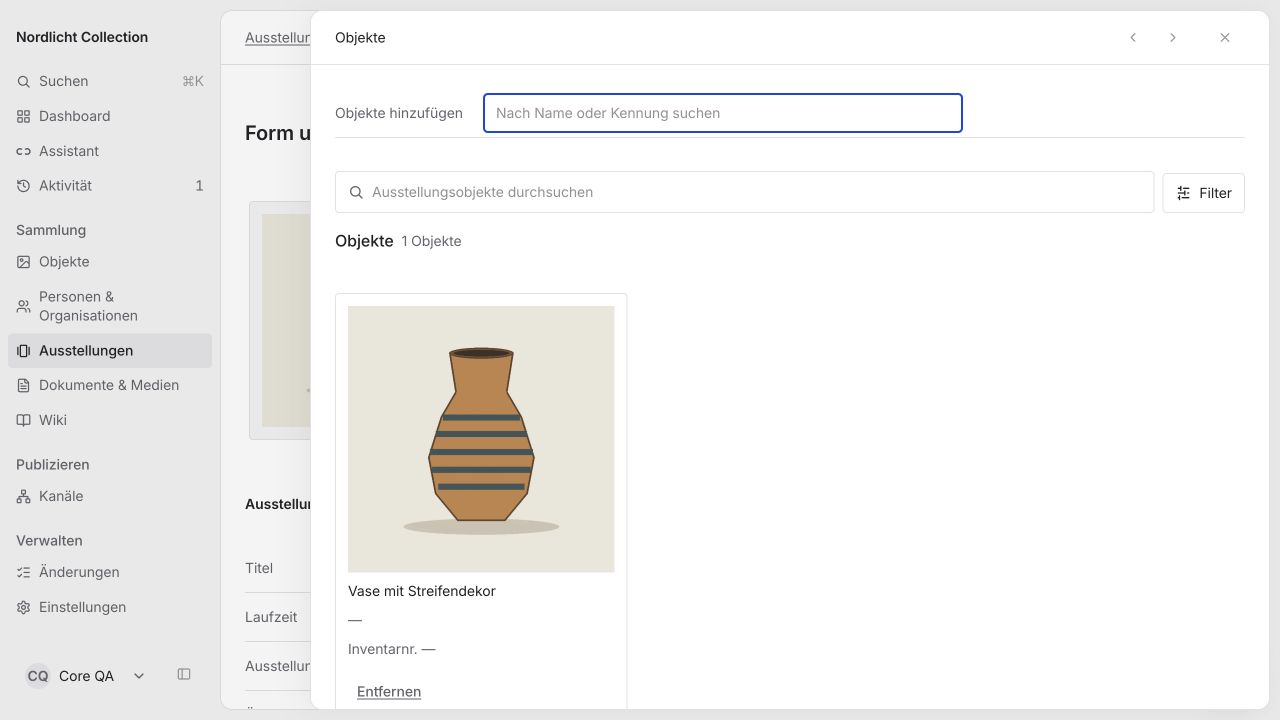
At the end, the exhibition "Form und Alltag" has been created with its title and description. The "Vase mit Streifendekor" is in its object list. The object is not copied; it remains the same record.
You need the email or the dossier, an object that has already been recorded and permission to edit exhibitions. In the example, the object is the vase from Record an object.
Create the exhibition
Under Exhibitions, first search whether the exhibition already exists. If not, select Add. The New exhibition form opens.
Under Basic data, enter the title, in the example "Form und Alltag". Under About the exhibition, enter the description from the email. Choose the location under Location from the existing entries. Leave empty what you do not know yet, in the example the dates and location.
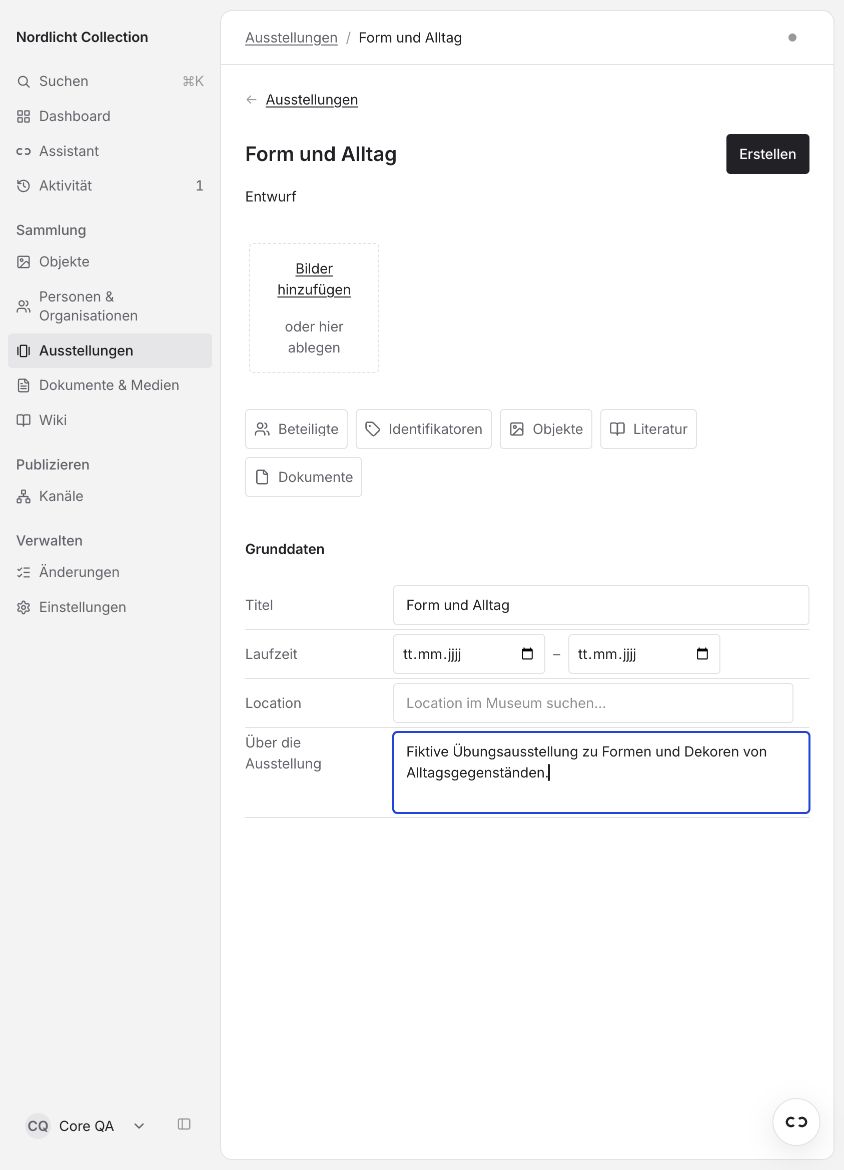
Select Create. Visitors cannot see the exhibition yet.
Select an existing object
In the saved exhibition, open the Objects section. The list there is also called the checklist.
In the upper Add objects field, enter "Vase mit Streifendekor". Do not use the Search exhibition objects field. It only searches the objects that already belong to the exhibition.
Check the title and select the match. If there are similar titles, look in the object register to see from the image and characteristics which object is meant.
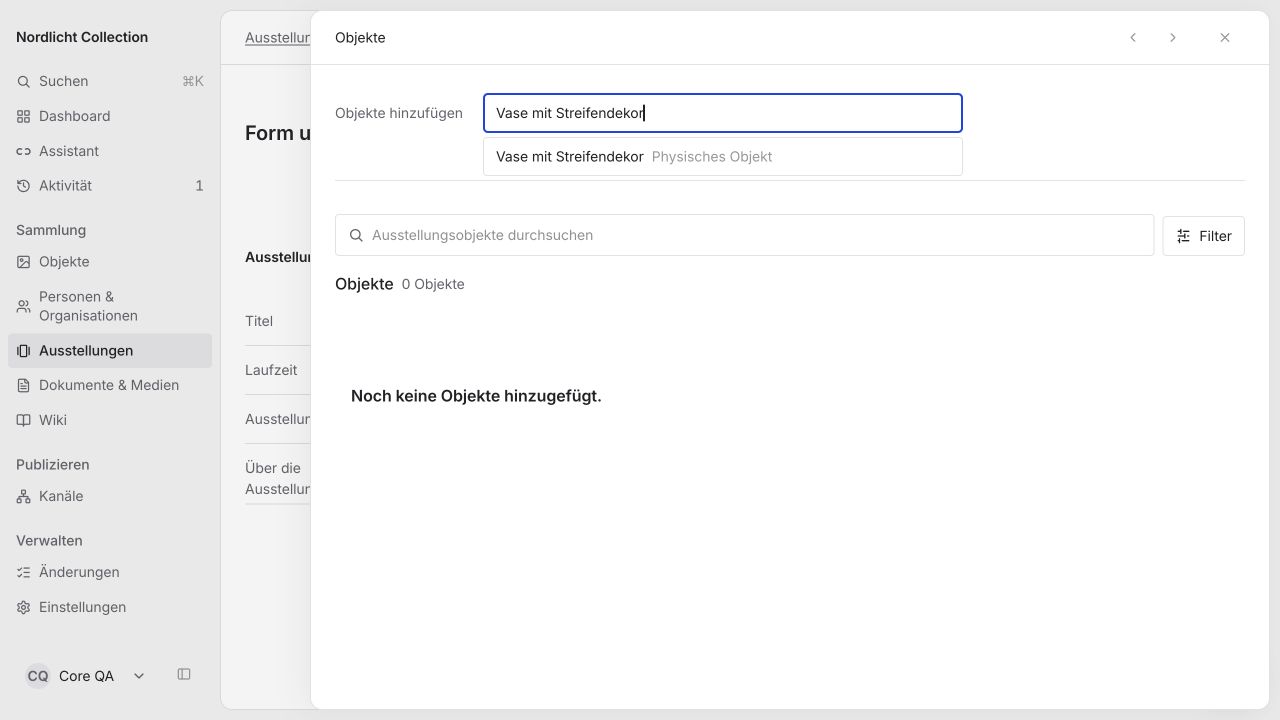
As soon as you select the match, the assignment is saved. There is no separate button for adding. If an error message appears, select Retry.
Check the assignment
The object appears with image and title in the exhibition's object list. For more objects, repeat step 2.
You are done when the vase is still listed under Objects after you open the exhibition again. The object was not copied. Its exhibition history now also shows this exhibition.
Record the email as a source and file dossiers under Documents. A file you attach in the chat is not yet saved on the exhibition. Exhibitions shows how.
Keep the exhibition up to date
To change the title, dates or description, select Edit at Exhibition data and then Save changes. A catalogue number applies only to this exhibition. The object itself does not change. Remove on the card takes the object out of the exhibition. The object's record is kept.
How to record showings, participants and sources is described under Exhibitions. You set up a view for visitors under Channels.